Apple Watch
IronLevel’s Apple Watch app comes with the iPhone app. It records your heart rate for each workout, shows the set you are on, and lets you log sets from your wrist. A workout you start on your iPhone is run from the phone and the watch follows it; you can also start today’s workout on the watch alone and leave the phone behind.
How it works
- Installing it: it installs with the iPhone app; check the Watch app on your iPhone if it is not on your watch. It needs no setting: when you tap Start in IronLevel, the watch app opens and starts recording. The first time, it asks to read your heart rate.
- The Now page: the exercise, “Set 2 of 4”, and the target weight, reps and RIR. During a rest it counts down; when the rest is over it says so. Turn the Digital Crown or swipe to the heart-rate page.
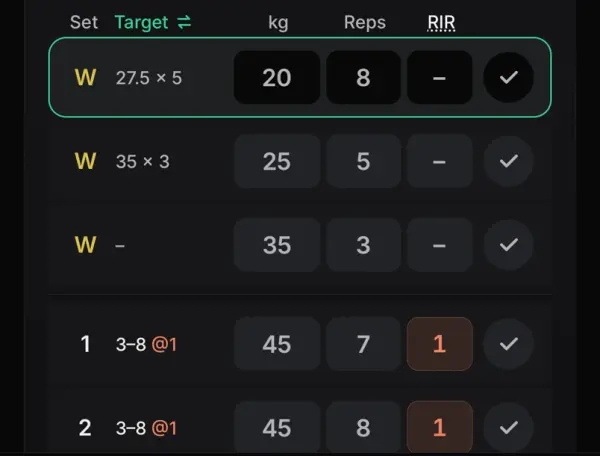
- Logging a set: tap the weight, reps or RIR and turn the crown to change it, then tap Done. The watch saves it, sends it to your iPhone and moves to the next set of that exercise.
- Sending to your phone: sets you log on the watch reach the workout while it is open in IronLevel on your iPhone. Out of range or with the app closed, they wait on the watch (“Not sent yet”) and send themselves when the phone is back.
- Starting on the watch: with no workout running, the watch shows today’s workout from your program (“Today”, its name, its exercises and sets) and a Start button. Tap it and the watch walks every exercise in order: log each set as above, and Done starts its rest on the watch. The page under it has Add set, Skip exercise, Finish workout and Discard workout. A lift that needs a machine logs anyway: pick the machine on your iPhone later.
- Handing it to your iPhone: the watch keeps the whole workout as you go. When your iPhone is nearby with IronLevel open, it takes the workout as you log it; otherwise the watch shows “waiting for iPhone” and the workout arrives the next time you open IronLevel. It counts like a workout logged on the phone, at the times you did it, with your XP and records. Finish saves the workout and its heart rate to Apple Health; Discard saves nothing anywhere.
- The heart-rate page: your heart rate, the time, and End. End stops the watch recording only; the workout keeps going on your iPhone. In a workout started on the watch, End asks whether to finish or discard it.
- Interval coach: in an interval session or finisher, the watch shows the phase, the round and its countdown, taps your wrist at each change, and shows your heart-rate zone when you have set a max heart rate.
- Target zones on cardio: a cardio block with a target zone shows your heart rate against it on the watch, with the zone bar, and taps your wrist when you drift above or below it (an up tap to push, a down tap to ease off). That works when your iPhone runs the block and in a workout started on the watch. Change the zone on your iPhone; with no heart rate yet, the watch shows no zone.
- Timed sessions: a run, a yoga class or another timed session has no sets, so the watch shows its elapsed time and heart rate, with End.
- Ending a workout your iPhone started: Finish on your iPhone saves the watch’s workout to Apple Health, and its heart rate shows on the workout summary. Discard throws the watch recording away. Once it is saved, the watch goes back to waiting for your next Start.
- Complications: IronLevel puts five complications on Apple’s own watch faces and in the Smart Stack. To add one, press and hold the watch face, tap Edit, swipe to the complications, tap a spot and pick IronLevel; or, on your iPhone, open the Watch app, pick a face and choose IronLevel for a complication spot. Each comes in the sizes that fit it: a circle, a corner, a line of text and a rectangle.
- What each shows: This week rings your training days against your weekly target (“2/3”). Steps rings today’s steps against your goal, and the rectangle adds Walking’s level and its XP bar. Next workout says “Today · Push A” on a training day, “Today · Done” once you have trained, and the next day once this week’s target is met (“Push A · Tomorrow”). Character shows your total level, and the rectangle the skill closest to its next level with its XP bar. Forge counts down to when your craft is ready, then says “Ready to collect”, or “Forge is cold” with nothing to craft.
- Tapping one: Next workout opens the watch app, where today’s Start is; Steps opens today’s steps on the watch; the others open the watch app.
- The Smart Stack: turn the Digital Crown up from the face to see it. IronLevel’s widgets move up when they matter: Next workout in the morning of a training day, Forge around the time your craft is ready, and Steps in the evening while you are short of your goal.
- Where the numbers come from: your iPhone sends them to the watch whenever they change in IronLevel, with each day’s change built in, so the week and the day roll over on their own. If your iPhone has not sent anything for two days, they say “Open IronLevel to refresh” instead of showing old numbers; after you sign out they say “Open IronLevel to sign in”.
- Rest timer: while a rest counts down on your iPhone, its Live Activity also shows in your watch’s Smart Stack.
- What it can’t do: finish or pause a workout your iPhone started, start or skip a rest in one, change exercises, pick a machine, start a run or another timed session, or edit timed and distance sets. Do those on your iPhone.
Example
You start Upper A on your iPhone and leave it on the bench. Your watch shows bench press, its first set and the target. You tap the reps, turn the crown to your count, tap Done, and the iPhone ticks the set and starts your rest.
What to do
Wear the watch for every workout: starting on your iPhone records your heart rate. To leave the phone in the locker, open IronLevel on it first so the watch has today’s workout, start it on the watch, and open IronLevel again afterwards to take it in.
Read next
- Timed sessions
Runs, rides, swims, classes, intervals and yoga on the clock
- Wear OS watches
Heart rate, logging sets and whole workouts on a Wear OS watch, the IronLevel watch face, complications and Tiles
- Importing history, Health and Apple Watch
Bring your past workouts, and connect your watch
- Your workout on the lock screen
The rest timer and your next set on the lock screen and Dynamic Island