Wear OS watches
IronLevel’s Wear OS app does what the Apple Watch app does: it records your heart rate, shows the set you are on, lets you log sets from your wrist, and can run today’s workout on its own while your phone stays in the locker.
How it works
- Installing it: it comes with the phone app on Google Play, for recent Wear OS watches, and needs the phone app to work. When you tap Start on your phone, the watch app opens. If it can’t come to the front, the watch shows “Workout started on your phone”: tap it to start recording.
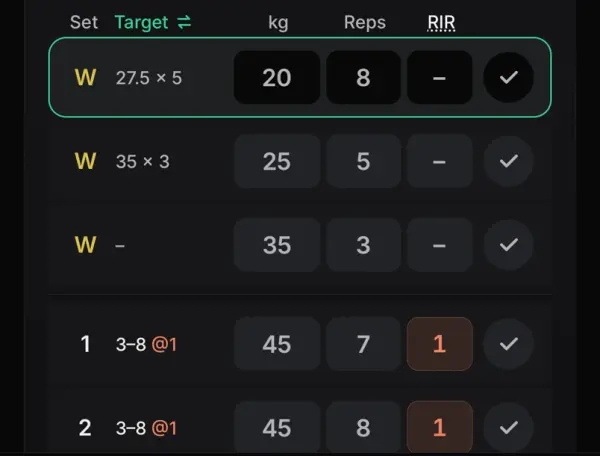
- The same as Apple Watch: the Now page with your set and target, logging sets with the crown or bezel and Done, sets waiting on the watch until your phone’s workout is open, the heart-rate page with End, the interval coach, and a cardio block’s target zone with its taps.
- Starting on the watch: as on Apple Watch, with no workout running the watch shows today’s workout from your program and a Start button. It walks every exercise in order, rests on the watch, and has Add set, Skip exercise, Finish workout and Discard on the page under it. When you finish, the workout goes to your phone as soon as it is nearby with IronLevel open, and counts like one logged on the phone. Discard saves nothing to your phone or Health Connect.
- Extra on Wear OS: your rest or workout time shows on the watch face, the watch buzzes when your rest ends, and a “Recording heart rate” notification stays up while it records.
- Heart rate and Health: the watch hands its recording to your phone when you finish, and the phone saves it to Health Connect.
- The IronLevel watch face: install “IronLevel Watch Face” from Google Play on your watch (it needs the IronLevel watch app), then long-press the watch face and pick it, or choose it in your phone’s Wear OS app under Watch faces. It shows the time and date, your hero in the gear and looks you wear, your total level, and a ring with one segment for each day of your weekly target, filled as you train. Three slots, left, right and bottom, start on Steps, the Forge and your next workout; long-press the face and tap Edit to put anything there.
- Always-on: when your wrist is down the face goes dark: the time, your level and the slots in grey, the ring as a thin line, and no hero.
- Complications for any watch face: This week (training days against your target, as a ring), Steps (against your goal), Next workout, Character level (your total level) and Forge (a countdown to your craft, then “Ready”). Long-press your face, tap Edit, pick a slot and choose one under IronLevel.
- Tiles: swipe left from the watch face. Today shows your next workout with Start, which begins it on the watch. This week shows the ring, today’s steps and when your craft is ready. To add them, swipe to the end of your Tiles and tap Add, or use your phone’s Wear OS app.
- Keeping them current: your phone sends the face, complications and Tiles what they show each time IronLevel opens or a workout, craft or step count changes, and once an hour while you use the app. The watch moves them on by itself: a new week starts empty on your week’s first day, steps go back to zero at midnight, and the Forge says “Ready” when your craft is done. If your phone hasn’t sent anything for a couple of days, they say “Open IronLevel” instead of old numbers.
- If the app closes: when the watch app crashes or is closed mid-workout, the watch keeps recording. Open IronLevel on the watch and it picks the same workout back up, with the heart rate measured so far. Finish on your phone ends it even if you never reopen the watch app.
- TalkBack: every button and number reads out in full words, as VoiceOver does on Apple Watch: the weight in kilograms or pounds, the reps in reserve, your heart rate in beats per minute and the time left in your rest. A tapped number tells you to turn the crown to change it.
- Ending: End asks first, as on Apple Watch. Finish or Discard on your phone ends the watch’s workout at once when the watch is in range, or as soon as it is back in range, so it never keeps recording.
- What it can’t do: as on Apple Watch, no finishing or pausing a workout your phone started, no rests in one, no machines, runs or changing exercises from the watch.
Example
You finish your workout on your phone while the watch is in range: the watch stops recording and the summary shows your average and highest heart rate. If you had left the watch in the locker, it stops recording when you are back beside your phone.
What to do
Allow heart rate and notifications on the watch the first time it asks. Keep the watch near your phone when you tap Finish, so its heart rate reaches the summary at once. To wear your hero on your wrist, install IronLevel Watch Face and add the Today and This week Tiles.
Read next
- Apple Watch
Heart rate, logging sets from your wrist, whole workouts without your phone, and complications on your watch face
- Importing history, Health and Apple Watch
Bring your past workouts, and connect your watch