Widgets
IronLevel has six home screen widgets, on iPhone and Android: Next workout, This week, Character, Forge, Pinned goal and Recent records. iPhones also get a Lock Screen widget. Each shows one thing at a glance, and a tap opens that part of the app.
How it works
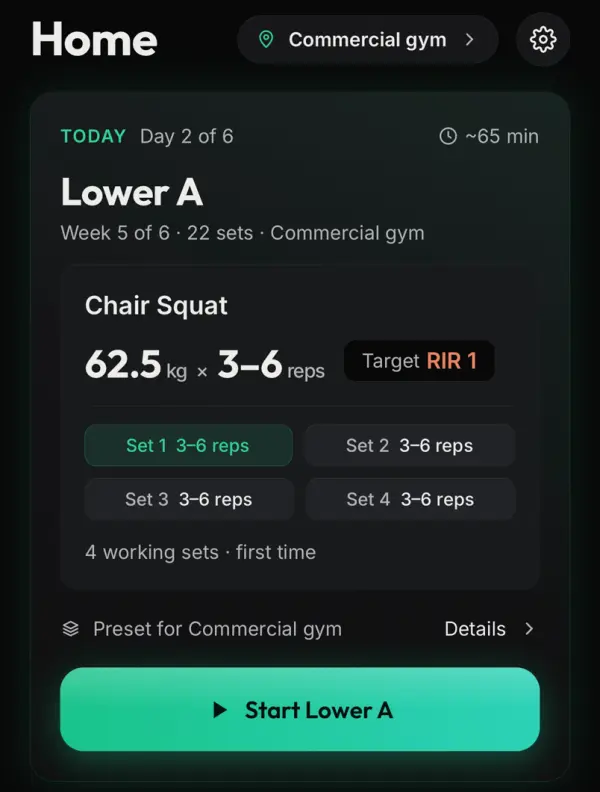
- Next workout (small and medium): the next program day (“Upper A”), where you are in the mesocycle (“Week 3 of 5”, or the deload), and a row of dots for this week, starting on the day your week starts (Settings › Week starts on). A filled dot is a day you trained, a ring a day still planned toward your target, and today’s dot is a little larger; under them, “2 of 4 days”. Medium adds the day’s first few exercises with their sets and reps, and your season level while a season runs. A tap opens that day’s workout preview, or Train when there is no program.
- This week (small): a ring of this week’s training days filling toward your target, the count beside it, the week’s days, and your season’s qualifying days this week while a season runs. A tap opens Train.
- Character (small and medium): your hero as you dress them, your total level, your class, and the skill closest to its next level with its XP bar. A tap opens Character.
- Forge (small and medium): what the Forge is crafting, counting down to when it is ready; once it is done, “Ready to collect”; with nothing in the Forge, the next thing you can craft. Medium adds the Chests and XP lamps waiting for you. A tap opens the Forge.
- Pinned goal (small): the goal you pinned on Home, how far along it is and about how many workouts away. With none pinned it says where to pin one: a skill, a recipe or a Feat. A tap opens the goal on Home.
- Recent records (small and medium, Pro): your latest records from the last month, each with its new number and what it beat the last one by. Small shows two, medium a few more. A tap opens Records. Without Pro it says the widget is part of Pro.
- Lock Screen (iPhone): a round one with your week’s ring, a wide one with your next workout and your week, and a line above the clock with your next workout, which reads “Forge ready” once a craft is done.
- Adding one: on iPhone, press and hold the home screen, tap Edit, then Add Widget, pick IronLevel and swipe to the widget you want; for the Lock Screen, press and hold it, tap Customize, then the Lock Screen, and tap the space for widgets. On Android, press and hold the home screen, tap Widgets and drag one of IronLevel’s onto the screen; stretch Next workout, Character, Forge or Recent records wider for the medium layout.
- Keeping them fresh: the widgets move on to the next day, a new week and a finished craft by themselves. Everything else changes when the app updates them, which happens whenever you open the app; if you have not opened it for a couple of days, a widget asks you to open IronLevel to refresh. Signed out, they ask you to sign in.
- Without a program: Next workout shows “No program”, and Next workout and This week count your training days against the days a week you plan to train (Settings).
Example
On a Tuesday, with your week starting on Monday, the medium Next workout widget reads “Lower A · Week 2 of 5”, lists your first few exercises, and shows Monday’s dot filled and two rings for the days still to go: “1 of 3 days”. Beside it, the Forge widget counts down your helm, and turns to “Ready to collect” while your phone sits in your pocket.
What to do
Pick the widgets for what you check most: Next workout if you follow a program, Forge if you keep it busy, Character to watch your next level come. Open the app now and then to keep them current.
Read next
- Programs
Built for you, from the library, or your own
- Your workout on the lock screen
The rest timer and your next set on the lock screen and Dynamic Island