Bodyweight, measurements and photos
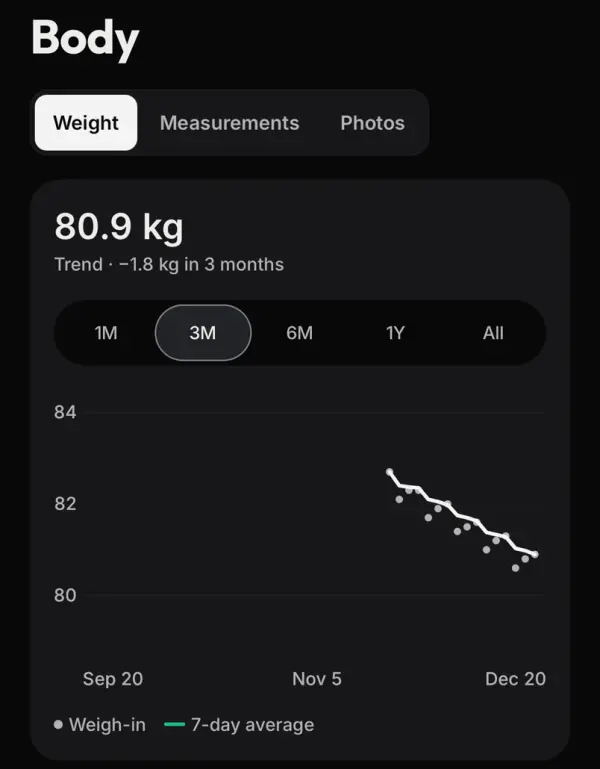
The Body screen keeps three things: your weigh-ins, your measurements and progress photos. Open it from Progress › Body, or from Settings › Body and units › Weigh-ins and measurements.
How it works
- Weight: add a weigh-in by hand, or connect Apple Health or Health Connect and the day’s first weight comes in by itself. The chart draws your average over the last week, so one salty dinner does not look like a gain.
- Measurements: waist, chest, hips, arm, thigh, neck. Measure at the same time of day for a fair comparison.
- Photos: one photo of each pose (front, side, back) a day; a new one replaces that day’s. Compare puts two days side by side, with the weight and waist nearest each.
- Your photos stay on your phone. They are never uploaded, and they are removed when you sign out or delete your account. A phone backup includes them.
- Why your weight matters to the game: most Feats ask for a lift as a share of your bodyweight, so a recent weigh-in keeps them fair.
- Free players see the last 3 months on the charts; Pro shows your whole history. Nothing older is deleted.
- Settings › Export body data (CSV) saves your weigh-ins and measurements as a spreadsheet file.
Example
You weigh in at 80.4, 79.6, 80.9, 80.1 kg over a week. The day-to-day swings are water and food; the chart shows about 80.3 kg, and the trend over the month is what to watch.
What to do
Weigh in first thing in the morning, a few times a week. Take photos in the same light and pose, about once a month: change is easier to see over weeks than days.
Read next
- The Progress screen
Your lifts, new records and weeks, and how to read their trends
- Importing history, Health and Apple Watch
Bring your past workouts, and connect your watch
- Free and Pro
What is free, what Pro adds, and how to manage your subscription